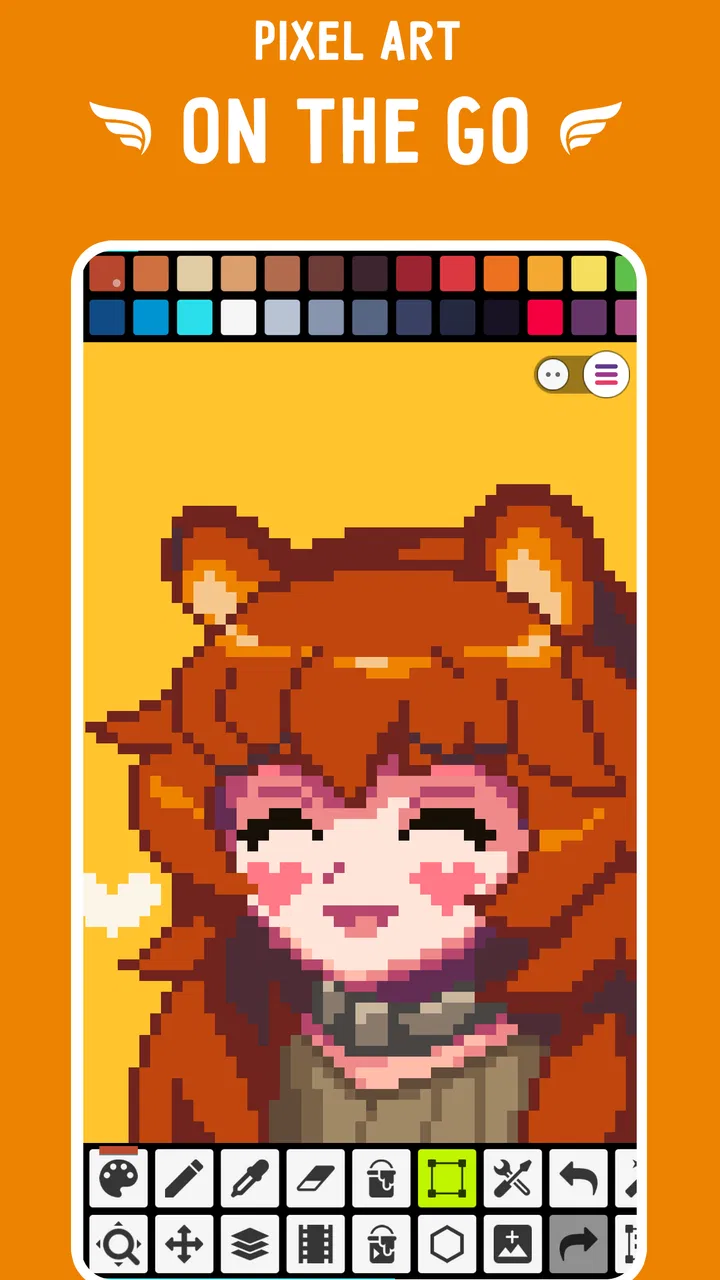
Pixel Studio: pixel art editor
- 4.6
- Rating
- 5.00M
- Installs
- Free
- Price

 Analysis by App-foxy
I spend a lot of time making small illustrations, icons, and looping animations, so I was curious to see whether Pixel Studio could replace the more awkward parts of working on pixel art from a phone. After using it as a compact drawing workspace, I found an app that understands the discipline of pixel-by-pixel editing rather than treating it as a normal drawing tool with a retro filter. It is focused, quick to open, and much easier to carry around than a desktop editor.
Pixel Studio is a free pixel art editor from Hippo Games AM, listed in the Art & Design category. Its appeal is straightforward: I can sketch a sprite, clean up a tiny icon, or work on a small animation without needing a computer. The app is suitable for Everyone, and it runs on Android devices using Android 7.0 or later. That broad compatibility makes it accessible, although the experience still depends heavily on the size and quality of the phone screen.
How Pixel Studio feels in everyday use
The first thing I noticed is that the app encourages a different mindset from ordinary painting software. Instead of dragging a soft brush across a large canvas, I am constantly thinking about individual cells, edges, contrast, and whether a single misplaced pixel changes the shape. That makes the interface feel purposeful. It does not try to turn pixel art into a general-purpose illustration studio.
You May Also Like

 Blood Strike: 2.5 Anniversary
Blood Strike’s Loadouts Turn Every Drop Into a Tactical Gamble
A close look at Blood Strike’s custom loadouts: how fast access to signature weapons reshapes its battle royale rhythm, rewards preparation, and narrows the gap between fights.

 Pandora - Music & Podcasts
Pandora’s Music Is Easy to Start, but Harder to Recover
Pandora’s strength is its low-effort path from a seed to a station. Its weak spot is how much confidence it asks you to place in connection, setup, and quiet recovery.

 8 Ball Pool
 Is Built on Rivalries, Rematches, and Routine
A close look at the rivalries, rematches, shared routines, and unanswered safety questions that turn a quick pool match into a persistent mobile community.

 Samsung Music
’s Quiet Strength Is Playing What You Already Own
Its reach comes less from spectacle than from dependable access to a personal library. That simplicity is both the app’s strongest retention engine and its ceiling.

 AccuWeather: Weather Radar
AccuWeather Review: A Quick, Clear Forecast for Everyday Decisions
For everyday plans, the best forecast is the one you can understand quickly. AccuWeather makes rain timing, radar, and local conditions easy to act on, with a few trade-offs.

 Hill Climb Racing
Why Hill Climb Racing Still Turns Crashes Into One More Run
A tiny car, a bumpy hill and one more upgrade: Hill Climb Racing keeps resurfacing because its simple chaos makes every near-miss feel personal.
More From Our News Desk



For a quick session, this focus is a real advantage. I can open a blank project, block in a character, and immediately concentrate on the silhouette. When I return later, I can work on small corrections rather than spending time configuring a complicated workspace. The portable format is especially useful when I have an idea away from my desk and want to capture it before the shape disappears from memory.
The app is also a practical fit for people learning the basics of pixel art. A beginner can see exactly how a line is built, how a limited palette changes the mood, and how much visual weight a single square can have. That direct feedback is more educational than using a large brush and relying on automatic smoothing. I found myself making better decisions about spacing because the canvas made every choice visible.
Useful workflows beyond simple doodling
One of my favorite ways to use it is for planning assets before moving to a larger project. I can draft a tiny game character, test a few poses, or compare alternate color arrangements without opening a full desktop package. This is not just convenient: working at a small scale exposes design problems early. If a face only works when enlarged, it probably needs a clearer silhouette or stronger contrast.
Another useful workflow is icon cleanup. When a small image looks blurry or uneven after being resized, a pixel editor gives me control over the exact border. I can remove stray squares, straighten a diagonal, and make the visual rhythm more consistent. This is the kind of task that feels unnecessarily slow in a general drawing app, where selecting one pixel may require zooming, panning, and fighting anti-aliasing.
I also found value in using the app as a color-study notebook. Rather than trying to finish a full illustration, I can make several tiny versions of the same object with different palette relationships. One version may use strong shadows, another may rely on a brighter accent, and a third may reduce the colors for a cleaner game-like appearance. Comparing these small studies helps me decide on a direction before investing more time.
A less obvious benefit is that the small canvas encourages restraint. On a desktop, it is easy to add detail simply because there is room for it. On a phone, I have to ask whether each mark improves recognition. That limitation can be frustrating, but it also trains the eye. For sprites, badges, simple scenery, and decorative tiles, this discipline often produces a clearer result than adding more and more texture.
What the free access means in practice
Pixel Studio is free to install and use, which makes trying it a low-risk decision. The app includes in-app purchases ranging from $2.99 to $17.99 per item. I would treat the free access as a chance to test the workflow rather than assuming that every advanced convenience is included without payment. The important value question is whether the basic editor already fits the way you work.
For occasional sketches, learning exercises, and small personal projects, free access can be enough to justify keeping it installed. I would not pay simply because the app has a strong store presence; I would first see whether the canvas controls, editing rhythm, and export process suit my habits. If I were using it regularly for commissioned work or a serious asset pipeline, I would consider a purchase only after confirming that the paid options remove a genuine obstacle for me.
That distinction matters because a free editor can be excellent value even when it is not a complete replacement for professional software. I can use this app for ideas and focused pixel work, then move to another tool when I need broader production features. The free starting point makes that combination practical, while the paid range leaves room for users who want to invest more deeply.
Where it is stronger than ordinary drawing apps
Compared with a typical mobile painting application, Pixel Studio gives pixel decisions more importance. A normal drawing app is usually designed around smooth strokes, blended colors, and flexible brush sizes. Those features are useful for sketches and painting, but they can get in the way when I want a deliberately hard-edged image. A pixel-focused workspace reduces the need to constantly correct softness or accidental blending.
It is also more immediate than many desktop editors. Desktop programs may offer deeper layer systems, extensive shortcuts, and sophisticated file handling, but they often feel excessive when I only want to test a sprite idea during a short break. Pixel Studio is better suited to quick visual experiments. I can work directly on the phone without setting up a large workspace, which is a meaningful advantage for casual creators and students.
That convenience does not make it universally better. A desktop editor remains preferable when I need a wide monitor, precise pointer control, batch production, or a complex multi-file workflow. The phone format is excellent for focused edits, but less comfortable for long sessions involving many tiny corrections. My recommendation depends on whether portability or production depth matters more to you.
Limitations I noticed while working
The biggest friction is physical rather than conceptual: a phone screen is small. Even with zooming, I sometimes felt that my fingers covered the area I was trying to edit. A stylus can improve accuracy on compatible devices, but the app cannot change the basic compromise of mobile input. For a few minutes of cleanup this is manageable; for a long, detailed scene it can become tiring.
Pixel art also demands patience. The app makes individual pixels accessible, but it does not remove the design work required to make them look intentional. Beginners may expect a quick drawing experience and instead discover that a tiny character can take longer than a loose sketch. I see this as a property of the art form rather than a flaw in the app, but it is still worth understanding before downloading.
Another trade-off is specialization. If your main goal is freehand painting, photo editing, typography, or smooth vector illustration, this is probably the wrong first choice. Its value comes from pixel-level control. Using it for tasks outside that purpose would feel like forcing a small tool to behave like a complete creative suite.
The purchase structure also deserves a careful look. Because the app is free with optional purchases, I would make the decision based on actual usage instead of assuming that paying automatically turns it into a desktop replacement. Someone who only creates occasional icons may never need to spend anything. Someone building a consistent collection of assets may find paid options worthwhile, but should judge that against the specific workflow they need.
Who will get the most from it
I think Pixel Studio is particularly well suited to beginners who want to understand pixel art by doing it, rather than watching tutorials without practicing. The direct canvas makes mistakes visible, and the small scale keeps projects approachable. It is also a good companion for game developers who need to sketch characters, objects, or interface elements while away from a computer.
It works well for hobby artists who enjoy retro-inspired visuals, people designing small online graphics, and anyone who wants a compact visual notebook. A student could use it to explore palettes between classes. A developer could draft a pickup item or enemy silhouette before implementing it. A designer might use it to test whether an icon remains recognizable at a tiny size.
The app is less suitable for someone who wants a polished illustration environment with a large canvas and a broad collection of non-pixel tools. I would also hesitate to recommend it as the only tool for a professional production pipeline that depends on extensive desktop automation or very long editing sessions. It can contribute to that pipeline, but it should not be chosen on the assumption that portability replaces every specialized desktop feature.
What the popularity suggests, and what it does not
The app has reached over 5 million installs, with a 4.7 average from around 87 thousand ratings and roughly 4 thousand written reviews. Those figures suggest that the concept has found a substantial audience, and they gave me confidence that Pixel Studio is more than an abandoned experiment. Still, popularity does not tell me whether its editing style matches your hands, screen, or creative goals.
The current version is 5.45, and the app was released on May 18, 2018. That history gives the product a sense of maturity compared with a brand-new editor. I still recommend testing it with the kind of work you actually plan to make: a tiny character, a palette study, or a cleaned-up icon. A short practical trial will reveal more than a rating alone.
My buy-or-skip recommendation
I would recommend Pixel Studio to anyone who wants a dedicated mobile workspace for pixel art and values being able to create without a computer. The free entry point makes it easy to explore, and the app delivers its best value when I use it for compact, deliberate work rather than expecting a full illustration suite. Its strongest quality is focus: it helps me think in pixels instead of constantly correcting tools designed for smooth artwork.
I would skip it if your priority is painting with soft brushes, editing photographs, producing large illustrations, or managing a complex professional asset library from one application. In those situations, a broader drawing or desktop tool is likely to be a better investment. I would also skip paying for extras until the free experience has shown me exactly what I need to improve.
For me, the final verdict is positive but specific. Pixel Studio is valuable because it makes small pixel decisions quick and portable, not because it tries to do everything. If that is the kind of creative work you want, it is an easy app to try and a useful one to keep. If you need a universal art studio, its specialization will feel limiting rather than liberating.
After using it, I would describe Pixel Studio: pixel art editor as a practical pocket companion for sprites, icons, studies, and small visual experiments. Hippo Games AM has kept the idea clear: give pixel artists a focused place to work on a phone. The free access is enough to make an informed decision, while the optional purchases provide a path for users whose projects grow beyond casual experimentation. That balance makes it worth downloading, provided you genuinely want pixel art rather than a general drawing app.
FAQs for Pixel Studio: pixel art editor
01What platforms is Pixel Studio available on?
Pixel Studio is available on both Android and iOS platforms, making it accessible to a wide range of users. This allows artists to create pixel art whether they are using a smartphone or a tablet. Additionally, it supports cross-platform functionality, enabling seamless transition between devices.
02Does Pixel Studio offer layers for editing?
Yes, Pixel Studio supports multiple layers, which is essential for detailed and complex pixel art creation. Layers allow artists to work on different elements of their artwork independently, providing greater flexibility and control over the creative process. This feature is particularly beneficial for advanced users.
03Are there any tutorials available for beginners?
Pixel Studio includes a variety of tutorials and guides to help beginners get started with pixel art. These resources cover basic to advanced techniques, ensuring that users of all skill levels can learn and improve. The app’s community also offers valuable insights and tips through forums and social media.
04Is there a cost to use Pixel Studio?
Pixel Studio is free to download, but it offers in-app purchases for additional features and tools. These premium options enhance the functionality of the app, providing features such as advanced brushes, expanded color palettes, and ad-free experience. Users can choose to purchase these based on their needs.
05Can I export my artwork to other formats?
Yes, Pixel Studio allows users to export their artwork in various formats, including PNG and GIF. This flexibility ensures that your creations can be used across different platforms and shared easily on social media. High-resolution export options are also available for professional use or printing.
Pros
- User-friendly interface for beginners.
- Wide range of color palettes available.
- Supports layers for complex designs.
- Export options include GIF and PNG.
- Frequent updates with new features.
Cons
- Limited free version features.
- Occasional app crashes reported.
- Ads can be intrusive at times.
- Requires internet for some tools.
- No animation tutorial for novices.

Pixel Studio: pixel art editor
Gallery